User Guide
Once both the plugin and the MCP server are installed, you should be able to chat with Revit from Claude. Below are some tips to enhance your working experience with the connector.
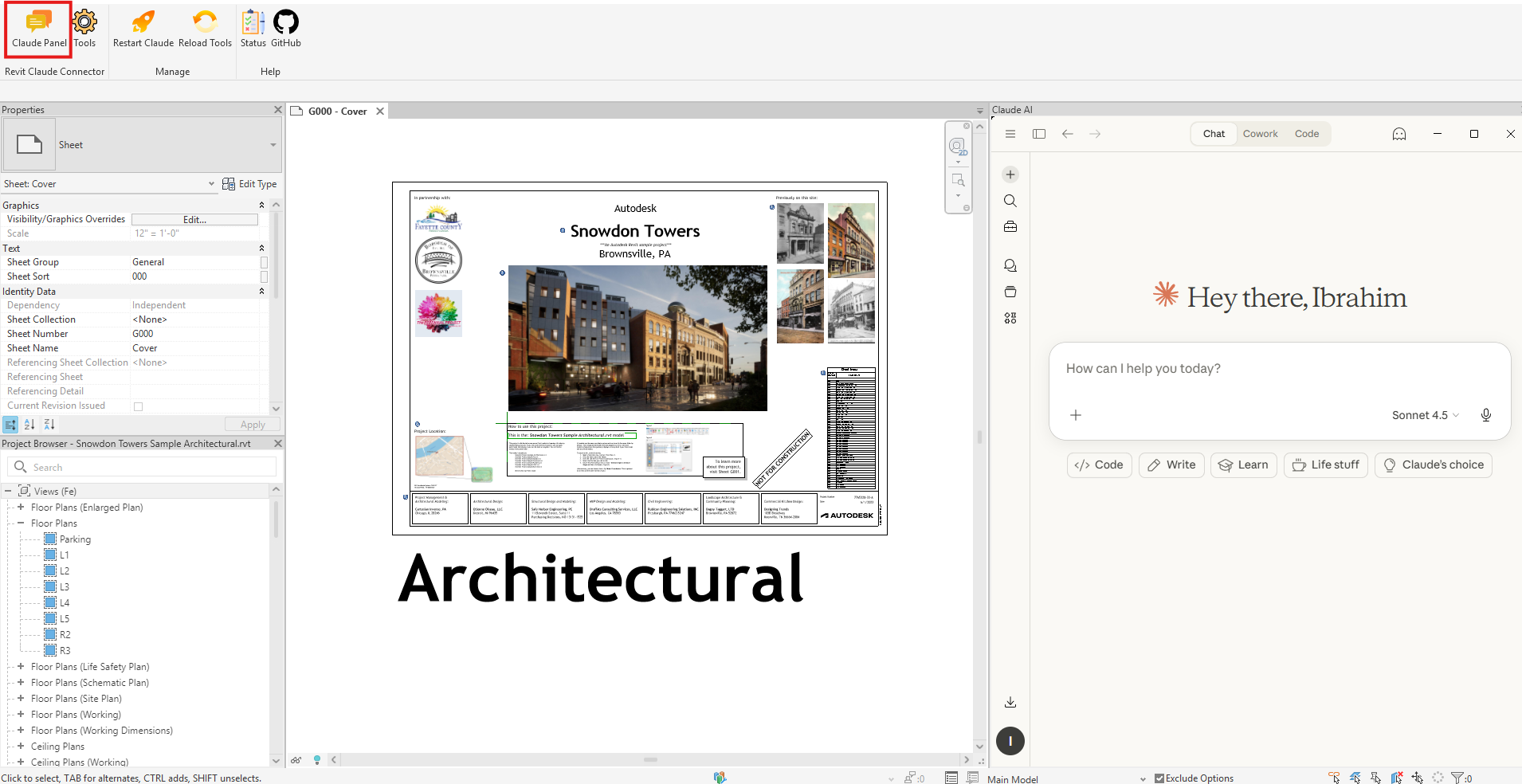
Claude Panel
Toggling the Claude button shows/hides the Claude Panel. When the panel is shown, the Claude UI will be snapped inside the panel area. Note that Claude Desktop should already be manually launched before using the panel.
**Note:**If you prefer to keep Claude Desktop in its own separate window, you can close the panel and work with Claude normally.
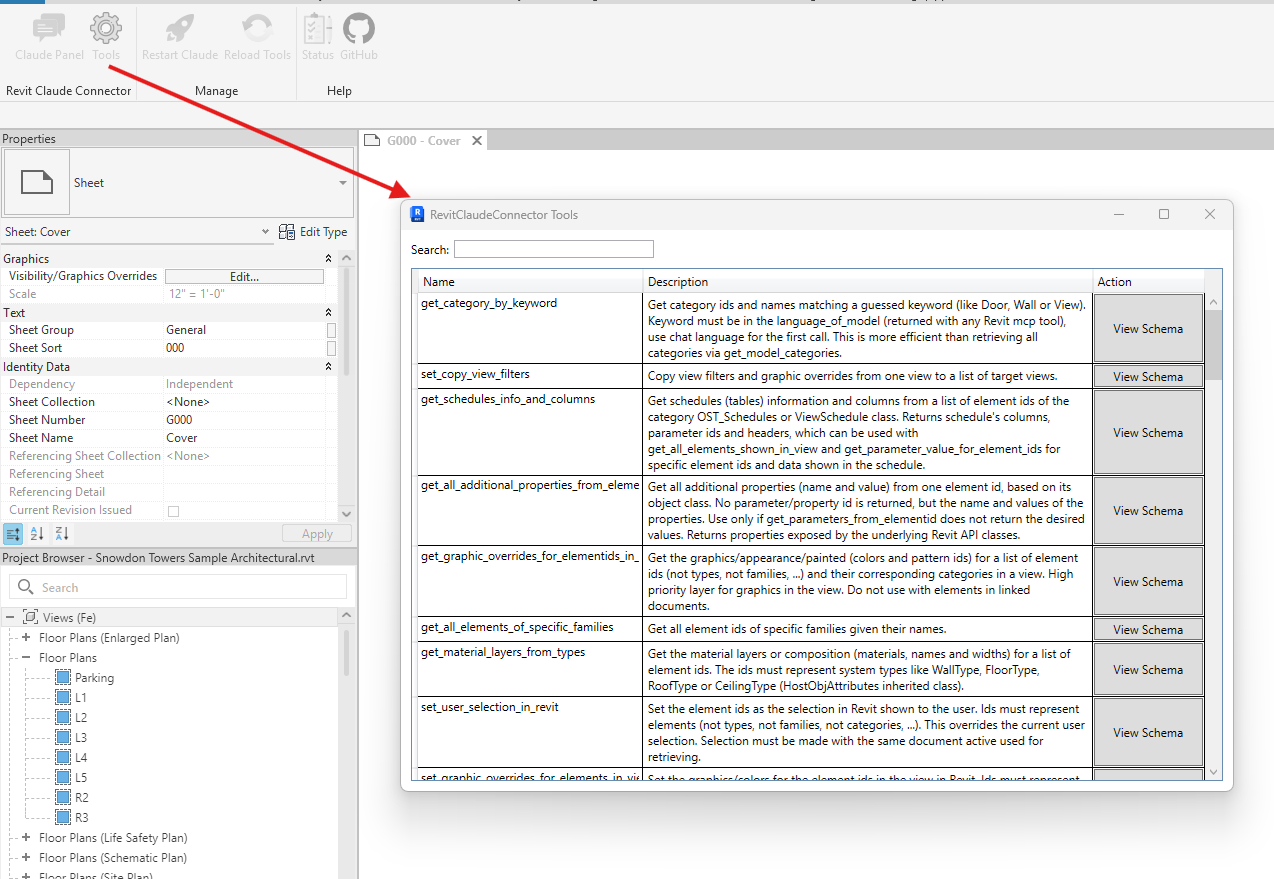
Tools
You can explore current tools that you can use in the connector using the Tool Lookup view.
Skills
Skills let you automate repetitive workflows by chaining tools together and controlling how Claude executes them and processes the output.
A skill is a .skill file (a renamed ZIP archive — you can inspect its contents by adding .zip to the filename and extracting it). A sample skill is included in the claude-skill-sample/ folder of this repository as a starting point.
Included Skill: bim-qaqc-auditor
The bim-qaqc-auditor.skill is a ready-to-use BIM quality assurance skill that automatically validates your Revit model against common BIM standards and generates a detailed CSV report. It checks:
- Level naming conventions — ensures levels follow the pattern
[Letter][Number]_[Text](e.g.F1_GROUND FLOOR,B2_BASEMENT 2 FFL) - Room/Space parameters — verifies every room has a valid
SpaceUsageCodeanddescriptionmatching the bundled usage codes reference spreadsheet
How to Load a Skill in Claude
- Open Claude Desktop and go to Settings → Claude AI Skills
- Click Add Skill and browse to the
bim-qaqc-auditor.skillfile - The skill named
bim-qaqc-auditorwill appear in your skills list and become available in your conversations
Prompt Examples to Trigger the Skill
Once the skill is loaded, Claude will automatically apply it when you ask something like:
"Run the BIM QA/QC auditor on the current model""Use the bim-qaqc-auditor skill to check my Revit model""Audit this model for level naming and space parameter issues""Run QA/QC checks and save a report to my Desktop"
Claude will follow the skill's workflow — querying levels and rooms via the connector tools, validating against the bundled usage codes spreadsheet, and producing a QAQC.csv report at a location you specify.
Want to Build Your Own Skills?
You can create custom skills tailored to your own workflows and validation rules. To learn more, see the official Claude documentation on building skills: https://code.claude.com/docs/en/skills
Performance
Working with AI Assistance in Revit is a different experience than using native Revit tools. Running commands directly in Revit will almost always be faster than asking an AI to do the same thing. The AI connector shines for certain use cases as mentioned in the "AI Assistance in Revit" section of the What Is This? page, but if you just want to quickly get something done, the native Revit tools will usually be the way to go.
To improve the performance and token usage of the Revit Claude connector, you can:
- Use skills to chain multiple steps together in one go, instead of asking Claude to run separate commands one at a time.
- Be specific in your requests to avoid unnecessary back-and-forth. For example, instead of asking "What are the issues with this model?" you can ask "List all walls that are not connected to a floor."
- Use the Tool Lookup view to see what tools are available and how to use them effectively, instead of asking Claude to figure out which tool to use for a vague request.
- Avoid asking Claude to do things that are already easily done with native tools, like "select
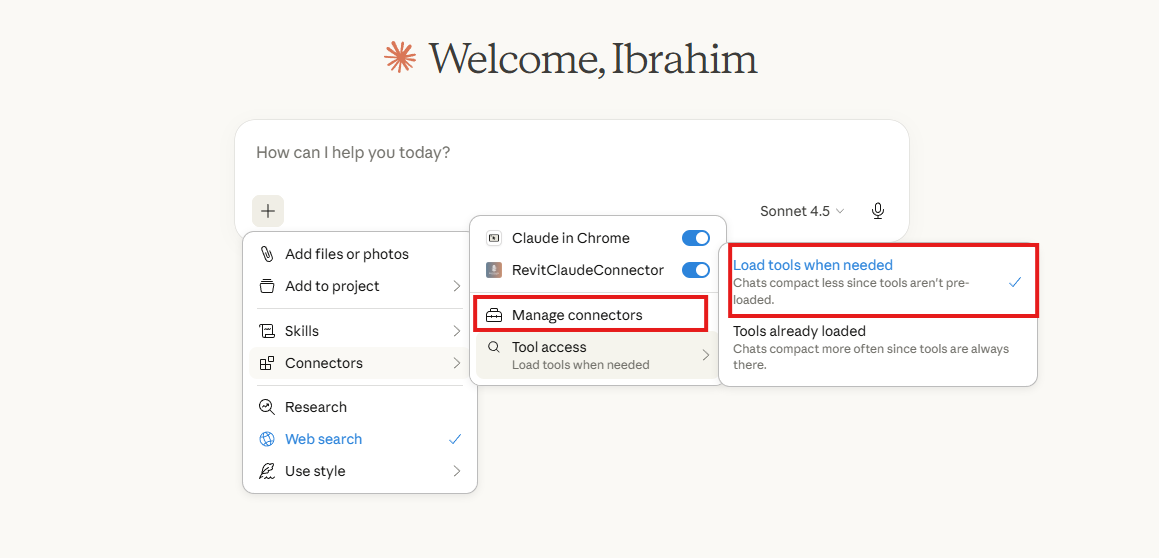
- In Claude, disable any unnecessary tools that you don't need for your current task, so that Claude has fewer options to consider when deciding how to execute your commands.
Demos
🔗Introducing RevitClaudeConnector (Part 1)
🔗Claude AI Connector for Revit (Part 2)
🔗Supercharge Claude AI Connector for Revit with Your Own Tools